Vertical Mouse for Mac & iPad: Fit, Setup, Comfort Tips
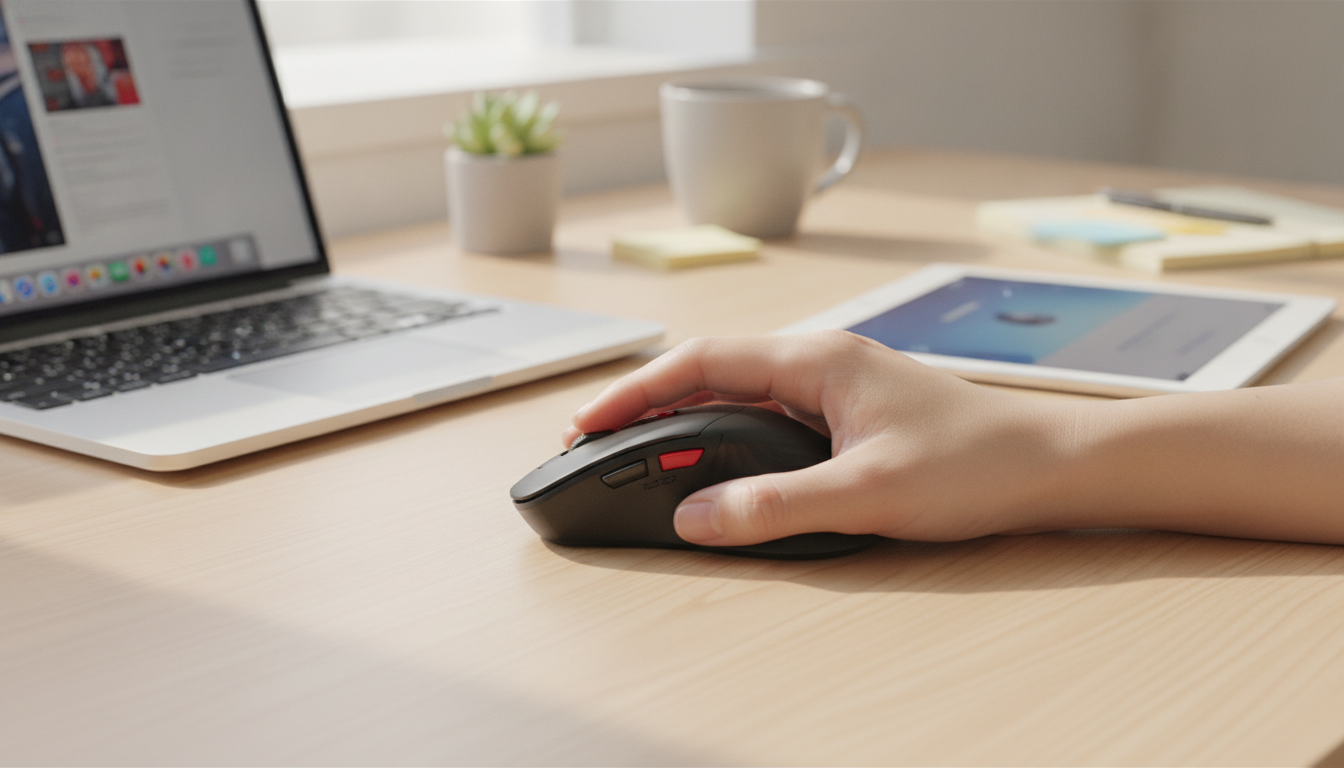
Ergonomic Wireless Vertical Mouse for Apple: Comfort, Fit, and Everyday Setup
A vertical mouse changes wrist posture from a flat “palm-down” position to a more neutral handshake angle, which can feel more comfortable during long Mac sessions. The goal isn’t to “force” a perfect posture—it’s to reduce the forearm twist that can build up over hours of clicking, dragging, and scrolling. Below is a practical guide to what makes a vertical mouse feel right on Apple devices, how to set it up on macOS and iPadOS, and what to double-check before ordering.
Why a vertical mouse can feel different on a Mac
Neutral wrist angle (less forearm twist)
Traditional flat mice often keep the forearm rotated inward (pronated). Vertical designs aim for a more neutral angle, which may reduce strain for some users during extended work. If you’re adjusting a lot of photos, editing video timelines, or living in spreadsheets, that small change in wrist and forearm position can be noticeable over time.
Grip and movement can shift from wrist to arm
Many people naturally “steer” a vertical mouse with more forearm and upper-arm movement and less wrist bending. That can feel smoother for long sessions, but it can also feel unusual at first—especially if you’re used to tiny wrist flicks on a trackpad.
A realistic transition period
Expect a short learning curve. A few days is common, and up to a couple of weeks isn’t unusual if you’re switching from a compact mouse or trackpad. Small changes—like lowering pointer speed, moving the mouse closer to the keyboard, or adding a mouse pad—often make the adjustment feel more natural.
What to look for in an ergonomic wireless vertical mouse for Apple devices
Comfort fit: thumb rest, palm support, and the right size
A vertical mouse works best when your hand can relax on it. Look for a supportive thumb rest, a contoured palm area that doesn’t force you to pinch, and a body size that matches your hand. If the mouse is too large, you may overreach for the buttons; too small, and you may squeeze to keep control.
Button layout that matches daily Mac use
Wireless method: Bluetooth vs. 2.4 GHz receiver
Tracking control for big screens
Surface performance
Quick compatibility checklist (Mac, iPad, and accessories)
Before buying, confirm how you’ll connect and where you’ll use the mouse most often (desk, couch, travel, hot-desking). Apple provides straightforward pairing guidance for Bluetooth peripherals on macOS (Apple Support: Connect a Bluetooth device with your Mac). For workstation comfort basics like neutral wrists and proper desk height, the OSHA Computer Workstations eTool is a helpful reference.
| Item to confirm | Why it matters | What to check before buying/using |
|---|---|---|
| Wireless connection type | Determines how it pairs with Apple devices | Bluetooth pairing vs. USB receiver; whether an adapter is needed for USB-C-only Macs |
| macOS/iPadOS pointer settings | Improves comfort and accuracy | Pointer speed, scrolling direction, and secondary click settings |
| Hand size and grip style | Affects long-session comfort | Palm support, thumb rest position, and overall height/width of the mouse body |
| Desk surface | Changes tracking reliability | Use a mouse pad if tracking is inconsistent or the desk is glossy |
| Travel and storage | Prevents lost accessories | If using a receiver, store it safely and consider a small pouch or case |
Getting started on macOS: pairing and dialing in comfort
Pairing basics
Pointer speed: set it, then fine-tune
Scrolling direction and secondary click
Ergonomic positioning that actually helps
Everyday use tips for smoother tracking and less fatigue
Use a mouse pad when consistency matters
Relax the grip
Match chair and desk height
Forearms should be roughly level with the desk, and wrists shouldn’t be bent upward. If you’re feeling tingling, numbness, or persistent discomfort, it can help to review prevention basics and seek professional advice; the Mayo Clinic overview of carpal tunnel syndrome summarizes common symptoms and risk factors.
Reduce constant clicking with shortcuts
Product options in stock
Main pick: vertical comfort for Apple setups
If you want an upright grip for long daily sessions, consider the Ergonomic Wireless Vertical Mouse for Apple ($30.97, in stock). After delivery, verify your preferred connection method (Bluetooth vs. receiver), set a comfortable pointer speed, and confirm stable tracking on your primary desk surface.
Optional add-ons for better breaks and balance
For a screen-free desk break, the DIY Tower Bridge 3D Wooden Puzzle Kit with LED Light (in stock) is a hands-on project that can encourage short micro-breaks away from constant clicking.
If stepping away from the desk is the bigger goal, Smart Travel: AI Finds Your Retreat – Luxury Wellness Retreat Planning Guide (Digital Download) (in stock) can be a structured way to plan a longer reset when work blocks get intense.
At-a-glance
| Item | Details |
|---|---|
| Product | Ergonomic Wireless Vertical Mouse for Apple |
| Price | $30.97 USD |
| Stock status | In stock |
| Product page | View product |
FAQ
Will a vertical mouse work with MacBook and iMac?
Usually, yes—compatibility depends on whether it connects via Bluetooth or a USB receiver. If the mouse uses a USB-A receiver and your Mac only has USB-C ports, you’ll need a USB-C adapter or hub.
Do vertical mice require special drivers on macOS?
Basic pointing, clicking, and scrolling typically work without extra software on macOS. Advanced button customization may depend on the mouse model and can be limited by macOS or require an optional utility.
How long does it take to get used to a vertical mouse?
Many people adjust in a few days, but it can take up to a couple of weeks to feel fully natural. Using a lighter grip and fine-tuning pointer speed can make the transition smoother, especially during the first few sessions.














Leave a comment